Kubernetes
Building and Verifying Self-Hosted Images using Kyverno, Cosign and Harbor
This article walks you through how to cryptographically sign and verify self-hosted container images using Cosign, Kyverno, and Harbor.
Jubril Oyetunji
December 19, 2025
Published on
December 19, 2025
Read More
Divine Odazie
19 Jan, 2025

This article walks you through how to cryptographically sign and verify self-hosted container images using Cosign, Kyverno, and Harbor.

Building and Verifying Self-Hosted Images using Kyverno, Cosign and Harbor

Open source is undeniably responsible for the rapid growth and adoption of cloud native technologies and software in general. However, in recent times, supply chain attacks such as the XZ Utils Backdoor and many others have shown that implicit trust in your upstream dependencies is never a good idea.

To combat implicit trust, the Sigstore project was established in 2021, providing a platform for projects related to supply chain security, with the specific goal of protecting software supply chains.

This article will walk you through how you can verify images self-hosted on Harbor with Kyverno and Cosign before these images ever reach your Kubernetes cluster.

Harbor? Cosign? Kyverno? What are these things?

Harbor is an open source container registry you can use to self-host container images on your existing Kubernetes clusters. It provides enterprise-grade features such as role-based access control (RBAC), vulnerability scanning, and image replication while giving you complete control over your container image storage.

Cosign, on the other hand, is an open source tool for cryptographically signing and verifying container images. It's part of the Sigstore project and enables you to create tamper-proof signatures for your container images using industry-standard cryptographic techniques.

Kyverno is a Kubernetes-native policy engine that allows you to manage, mutate, and validate Kubernetes resources using declarative policies written in YAML. Unlike other policy engines that require learning domain-specific languages, Kyverno policies are written in familiar Kubernetes resource syntax (YAML), making adoption and scale easier.

Why should you care about signing and verifying container images?

Consider a case where a malicious actor has compromised your CI/CD pipeline and is now able to release container images of their own. If this sounds like a stretch, take a look at the Grafana incident from a couple of months ago (April 26, 2025), where unauthorized access to their CI/CD pipeline led to a potential supply chain attack had it not been handled carefully.

Depending on your company, this compromised image could be deployed across hundreds of machines. The blast radius of a single poisoned container image in a modern distributed system can be enormous.

To reduce risk and sometimes due to compliance requirements, many companies self-host their container registries. This is a great first step, but you still need a way to cryptographically prove that your image was signed by a trusted party before it ever reaches your production environment. This is where you’d sign them using a tool like Cosign.

But what good are signed images if you don't verify them? A malicious actor might as well bring their own keys, sign the image, and be on their merry way.

Without proper verification at deployment time, image signing becomes nothing more than security theatre.

And that's where you need Kyverno,  to ensure that no unsigned or improperly signed image ever makes it past your cluster's admission controllers.

Prerequisites

In order to follow along with this demo, you will need the following tools installed locally:

  • Helm: This will be used to install Kyverno and Harbor on your Kubernetes cluster
  • Cosign: This will be used to sign and verify your container images
  • Kubectl: This will be used to interact with your Kubernetes cluster and deploy resources
  • Access to a Kubernetes cluster with an ingress controller of your choice: This will provide external access to Harbor's web interface and API
  • Docker: This will be used for building and pushing container images to your Harbor registry

Generate a Cosign key pair

Cosign is able to sign container images using asymmetric cryptography, which means you need to generate a public/private key pair to sign images.

To do this, run the following command:

cosign generate-key-pair


You will be prompted to enter a password. If you do not wish to create one for your private key, press Enter to continue without a password.

The output should be similar to:

Private key written to cosign.key
Public key written to cosign.pub


This generates a public and private key pair that will be used for signing your container images.

The private key (cosign.key) is used to create signatures, while the public key (cosign.pub) is used to verify those signatures.

Create a Dockerfile

Next, you need a container image to sign. Begin by running the following command to create a simple Dockerfile:

cat << 'EOF' > Dockerfile
FROM python:3.9-slim
WORKDIR /app
RUN echo "print('Mooo!')" > app.py
CMD ["python", "app.py"]
EOF


This creates a basic Python application that prints "Mooo!" when run. The Dockerfile uses a slim Python 3.9 base image and sets up a minimal working directory with a simple script.

Deploying Harbor

This is a multi-step process, so be sure to take this one after the other:

Step 1: Deploy cert-manager

First, you need to deploy cert-manager. This is because, without HTTPS, the Docker daemon and Cosign will mark your registry as untrusted. While you can use --allow-insecure-registry on Cosign and mark a registry as insecure on the Docker daemon, this is far from ideal in production.

Deploy cert-manager using kubectl:

kubectl apply -f https://github.com/cert-manager/cert-manager/releases/download/v1.18.2/cert-manager.yaml


This deploys v1.18.2 of cert-manager.

Step 2: Set up environment variables

Next, export the DNS name associated with your cluster:

export INGRESS_HOST=905898aa-62df-4374-9d19-154d82c0fda3.k8s.civo.com

⚠️ be sure to replace with a domain name associated with your cluster

Also, create a namespace for Harbor to run in:

kubectl create ns harbor


The output is similar to:

namespace/harbor created


Step 3: Create a ClusterIssuer

Before deploying Harbor, you will need to obtain a TLS certificate using cert-manager. Begin by creating a ClusterIssuer (this tells cert-manager how to obtain certificates from Let's Encrypt):

cat << 'EOF' | kubectl apply -f -
apiVersion: cert-manager.io/v1
kind: ClusterIssuer
metadata:
  name: letsencrypt-prod
spec:
  acme:
    server: https://acme-v02.api.letsencrypt.org/directory
    email: hey@author.xyz  # Replace with your email
    privateKeySecretRef:
      name: letsencrypt-prod
    solvers:
    - http01:
        ingress:
          class: traefik  # or whatever ingress class you're using
EOF


Be sure to change the ingress class to whatever they have deployed (e.g., Nginx). Traefik was used in this demo. Also, be sure to replace spec.acme.email with a valid email address.

Step 4: Request a certificate

Next, obtain a certificate with the following manifest:

cat << 'EOF' | kubectl apply -f -
apiVersion: cert-manager.io/v1
kind: Certificate
metadata:
  name: harbor-cert
  namespace: harbor
spec:
  secretName: harbor-tls
  issuerRef:
    name: letsencrypt-prod
    kind: ClusterIssuer
  commonName: harbor.$INGRESS_HOST
  dnsNames:
    - harbor.$INGRESS_HOST
  usages:
    - digital signature
    - key encipherment
  duration: 2160h # 90 days
  renewBefore: 360h # 15 days before expiration
EOF


This is a standard certificate request, but the important bits are the secretName where certificate data will be stored, the issuerRef pointing to our ClusterIssuer, and the DNS name, which you should be sure to replace with your own domain.

Step 5: Install Harbor

Finally, install Harbor using the command below:

helm upgrade --install harbor harbor/harbor \
  --namespace harbor \
  --set expose.type=ingress \
  --set expose.tls.enabled=true \
  --set expose.tls.certSource=secret \
  --set expose.tls.secret.secretName=harbor-tls \
  --set expose.ingress.hosts.core=harbor.$INGRESS_HOST \
  --set expose.ingress.annotations."cert-manager\.io/cluster-issuer"=letsencrypt-prod \
  --set externalURL=https://harbor.$INGRESS_HOST \
  --wait


The Harbor install command has a few extra configuration options. Here are the most important bits:

  • expose.type=ingress: Configures Harbor to use an ingress controller for external access.
  • expose.tls.enabled=true and expose.tls.certSource=secret: Enables TLS and tells Harbor to use the certificate from a Kubernetes secret.
  • expose.tls.secret.secretName=harbor-tls: Specifies the secret containing our certificate data that cert-manager created.
  • externalURL=https://harbor.$INGRESS_HOST: Sets the external URL that Harbor will use for redirects and API responses.

Once this is done, you should finally be able to access the Harbor UI by visiting https://harbor.youringresshost.com, which should look a little like this:


By default, the admin login credentials are admin for username and Harbor12345 for password.

For security purposes, be sure to change this as soon as you can. This section of the Harbor docs goes into detail about resetting admin credentials.

Building and pushing images to Harbor

With a registry to store images set up, you can finally build and push a container image. Begin by authenticating with your registry by running:

docker login harbor.$INGRESS_HOST


This will prompt you for a username and password. You can use the default credentials:


Upon success, your output should be similar to:

Login Succeeded


Build the container image:

docker buildx build -t harbor.$INGRESS_HOST/library/cowsay:v1 .


Your output should be similar to:

+] Building 0.4s (7/7) FINISHED                                  docker:desktop-linux
 => [internal] load build definition from Dockerfile                              0.0s
 => => transferring dockerfile: 171B                                              0.0s
 => [internal] load metadata for docker.io/library/python:3.9-slim                0.3s
 => [internal] load .dockerignore                                                 0.0s
 => => transferring context: 2B                                                   0.0s
 => [1/3] FROM docker.io/library/python:3.9-slim@sha256:c2a0feb07dedbf91498883c2  0.0s
 => CACHED [2/3] WORKDIR /app                                                     0.0s
 => CACHED [3/3] RUN echo "print('Mooo!')" > app.py                               0.0s
 => exporting to image                                                            0.0s
 => => exporting layers                                                           0.0s
 => => writing image sha256:205f12fd441bd0ff3401f082e7fbdaf8d89060c06a7357bc8539  0.0s
 => => naming to harbor.2c3270ed-0f38-4aa5-a28e-8ba9d0dd96d2.k8s.civo.com/librar  0.0s


Just before you push up the image, build a v2 of the image. This will come in handy when testing.

docker buildx build -t harbor.$INGRESS_HOST/library/cowsay:v2 .


Push both images:

docker push harbor.$INGRESS_HOST/library/cowsay:v1
docker push harbor.$INGRESS_HOST/library/cowsay:v2


Your output should be similar to:

The push refers to repository [harbor.2c3270ed-0f38-4aa5-a28e-8ba9d0dd96d2.k8s.civo.com/library/cowsay]
feaf1c0587ae: Pushed
c658a9f34841: Pushed
374da1c54f03: Pushed
df349c01a1e4: Pushed
83ab85380878: Pushed
58d7b7786e98: Pushed
v1: digest: sha256:95f2ccc19817342640f9eeb56b9bae6c3c00fce25743ad43fd6e1b422bb2ec1b size: 1572


Signing the image with Cosign

With the image pushed up, you can now use Cosign to sign the image with the key pair generated earlier.

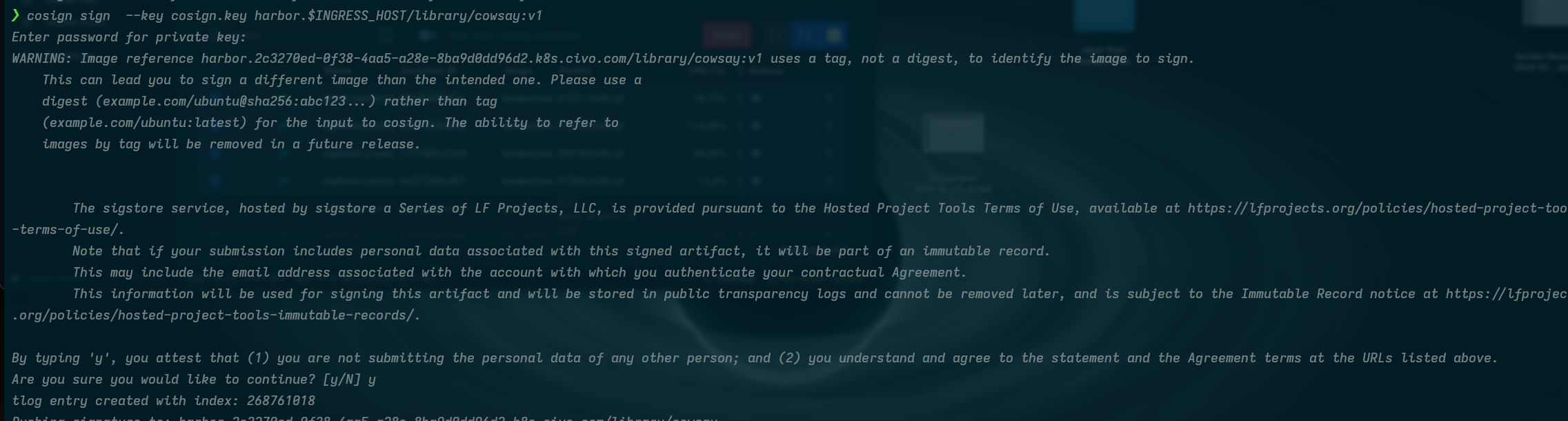
cosign sign --key cosign.key harbor.$INGRESS_HOST/library/cowsay:v1


You will be prompted to accept a few requests.  First, to enter your private key password, then Cosign will warn you about using tags instead of digests (which is fine for this demo), and finally, you'll need to accept the Sigstore terms of service by typing 'y '.


Once complete, the signature will be pushed to your Harbor registry alongside the image.

Verifying image signatures with Kyverno

Now that you have signed images in your Harbor registry, you need to ensure that only properly signed images can be deployed to your Kubernetes cluster.

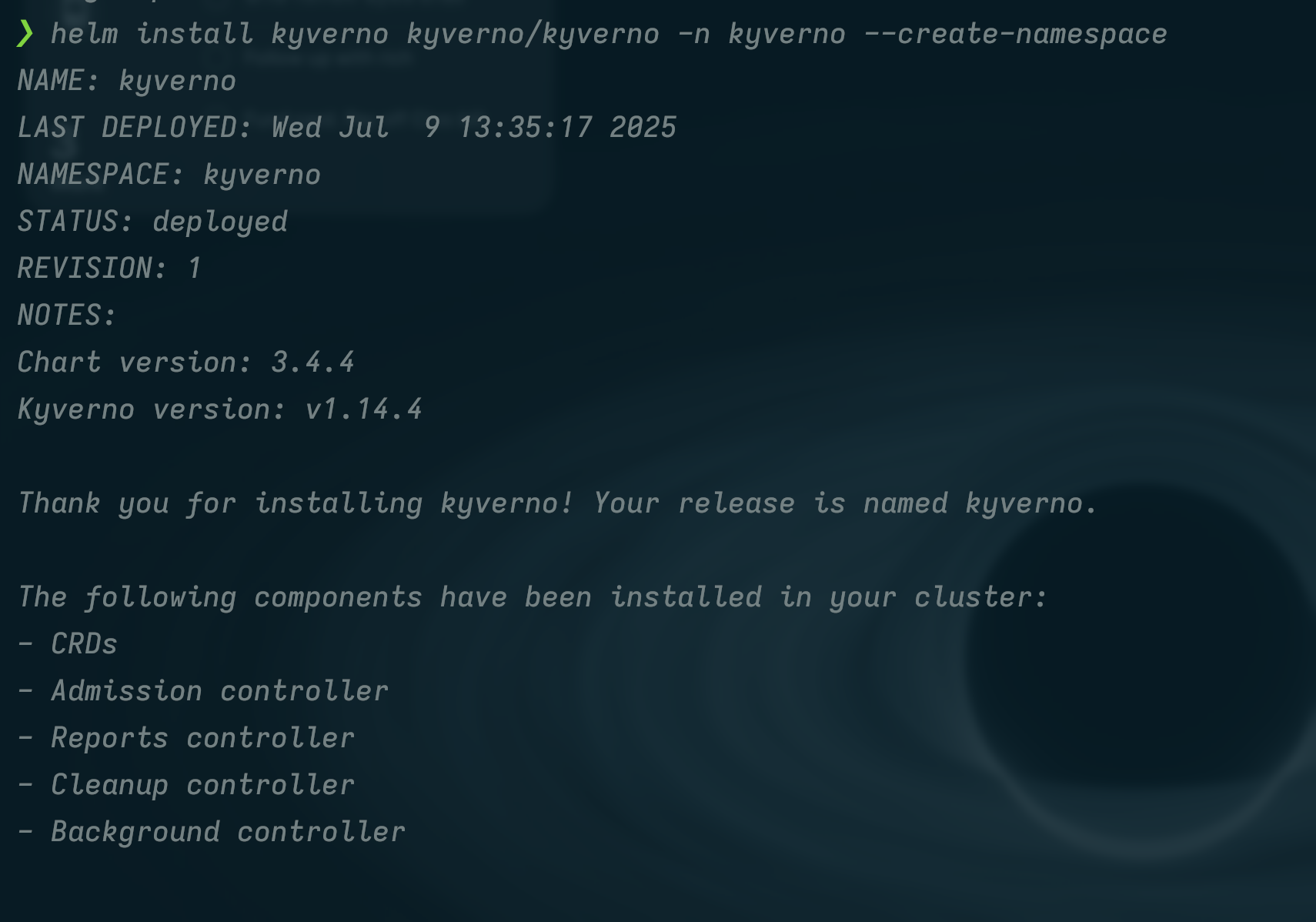
First, add the Kyverno Helm chart repository and install it:

helm repo add kyverno https://kyverno.github.io/kyverno/ && helm install kyverno kyverno/kyverno -n kyverno --create-namespace


helm repo add kyverno https://kyverno.github.io/kyverno/ && helm install kyverno kyverno/kyverno -n kyverno --create-namespace

The above command will install Kyverno within a namespace called kyverno.

Your output is similar to:


Next,  craft a policy that uses the public key Cosign generated to verify images. In a file named policy.yaml, add the following Policy as Code:

apiVersion: kyverno.io/v1
kind: ClusterPolicy
metadata:
  name: verify-image
  annotations:
    policies.kyverno.io/title: Verify Image
    policies.kyverno.io/category: Software Supply Chain Security
    policies.kyverno.io/severity: medium
    policies.kyverno.io/subject: Pod
    policies.kyverno.io/minversion: 1.7.0
    policies.kyverno.io/description: >-
      This policy verifies that container images from our Harbor registry have been 
      cryptographically signed using Cosign. Any pod attempting to use an unsigned 
      image will be rejected at admission time.
spec:
  validationFailureAction: Enforce
  background: false
  rules:
    - name: verify-image
      match:
        any:
        - resources:
            kinds:
              - Pod
      verifyImages:
      - imageReferences:
        - "harbor.youringresshost/library/cowsay*"
        mutateDigest: true
        attestors:
        - entries:
          - keys:
              publicKeys: |
                -----BEGIN PUBLIC KEY-----
               MFkwEwYHKoZIzj0CAQYIKoZIzj0DAQcDQgAEx8iEe+4b2h/6c2itV7TyR5kJVX0k
               AZOCIev2l4qjcBshSdZ/by5McSjnbU5+MDIhvCveVEOcAx6GnUdnupEMJw==
                -----END PUBLIC KEY-----


This policy uses the ClusterPolicy CRD (Custom Resource Definition) to enforce image signature verification cluster-wide. The key fields are:

  • validationFailureAction: Enforce: Rejects pods with unsigned images rather than just logging violations.
  • verifyImages: The main verification block that defines which images to check.
  • imageReferences: Specifies that only images from harbor.$INGRESS_HOST/library/cowsay* will be verified.
  • mutateDigest: true: Automatically converts image tags to digests for immutable references.
  • attestors.entries.keys.publicKeys: Contains your Cosign public key used to verify signatures.

When a pod is created, Kyverno will intercept the admission request and verify that any matching images have valid signatures before allowing deployment.

|        Be sure to replace the content of publicKeys with your own Cosign public key


Apply the manifest using kubectl:

kubectl apply -f policy.yaml


Validating your Kyverno policy (Testing an unsigned image)

Recall that earlier, you signed only v1 of the cowsay image; however, v2 is also on the registry.  Using kubectl run v2 of the cowsay image:

kubectl run test-pod --image=harbor.$INGRESS_HOST/library/cowsay:v2


Your output should be similar to:

Error from server: admission webhook "mutate.kyverno.svc-fail" denied the request:

resource Pod/default/test-pod was blocked due to the following policies

verify-image:
  verify-image: 'failed to verify image harbor.2c3270ed-0f38-4aa5-a28e-8ba9d0dd96d2.k8s.civo.com/library/cowsay:v2:
    .attestors[0].entries[0].keys: no signatures found'


See screenshot:


From the output above, the request to create  a pod was rejected because v2 of cowsay is an unsigned image; however, if you use a signed image:

kubectl run test-pod --image=harbor.$INGRESS_HOST/library/cowsay:v1


The pod is scheduled as usual, and your output should be similar to this:

pod/test-pod created


See screenshot:


Trust should be verified, not given

Modern problems require modern solutions, and in cloud native security, this means discarding the idea of a “trusted author” and constantly verifying an image is what it says it is.

In this post, we covered how you can use Kyverno to verify Cosign signatures for self-hosted container images. If you are looking to learn more about Kyverno, here are some deep dives:

Stay ahead with the latest updates, exclusive insights, and tailored solutions by joining our newsletter.
Thank you! Your submission has been received!
Oops! Something went wrong while submitting the form.
What is your email addres?
Featured posts
Getting Started with Kratix — The Open-source Platform Engineering Framework
This is some text inside of a div block.

Stay ahead with the latest updates, exclusive insights, and tailored solutions by joining our newsletter.

We care about your data in our privacy policy.
Thank you! Your submission has been received!
Oops! Something went wrong while submitting the form.
ABOUT THE AUTHOR